
Retail POS

A free retail POS system for small shops. Add products, ring up sales, take cash or card, print receipts and track daily sales. Create a free account and your products and sales are saved securely, so you can use them on any device.

Loading your store…

Log in to Retail POS

Create a free account to save your products and sales securely and use them on any device.

Signed in as

Add a product

ProductSKUCategoryPriceStockActions

CSV columns: name, sku, category, price, stock. Rows with a SKU that already exists update that product.

0Net sales
0Transactions
0Items sold
0Average sale
0Tax collected
0Discounts given

By payment method

    Top products

      Transactions

      ReceiptDate and timeItemsPaymentTotalActions

      Backup and restore

      Your products, sales and settings save to your account automatically. Download a backup any time to keep your own copy, or restore one to replace your current data.
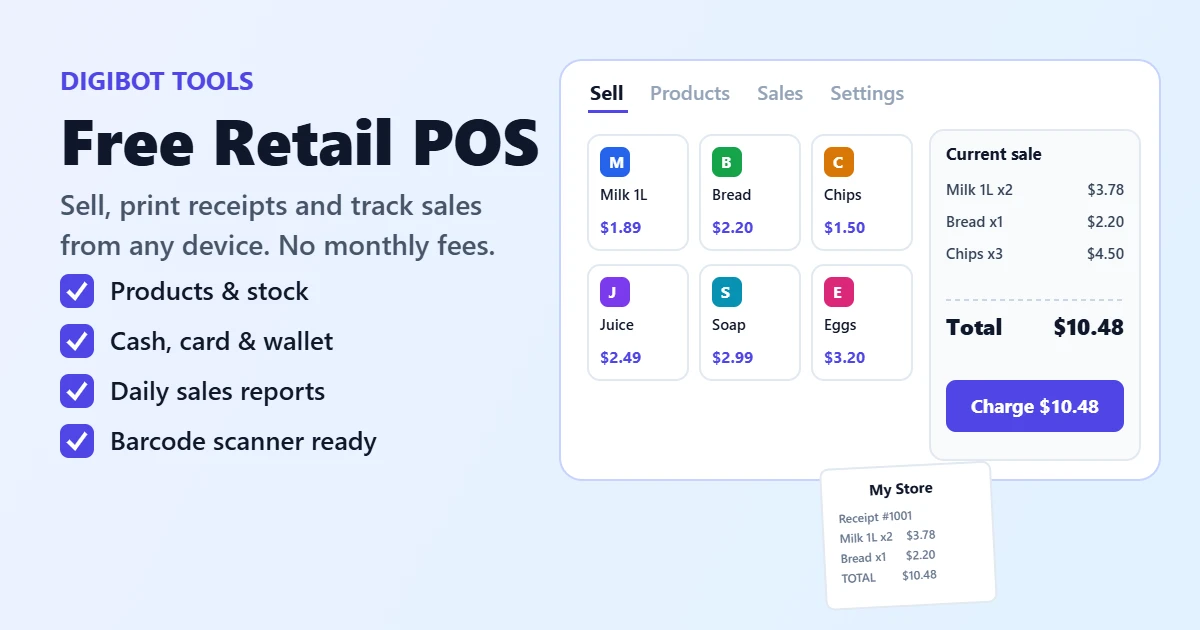
      Free retail POS screen with products, cart total and printed receipt

      What is a retail POS?

      A retail POS (point of sale) is the system a shop uses to ring up sales at the counter. It replaces the old cash register and notebook: you pick the items a customer is buying, the system adds up the total with tax and discounts, records how they paid and prints a receipt. At the same time it keeps track of stock and builds a sales history, so you always know what sold, when, and how much money should be in the drawer. You can read more about the history of point of sale systems on Wikipedia.

      Most retail POS software is sold as a monthly subscription, often with expensive hardware. This free retail POS runs in your web browser instead. Create an account, add your products and start selling on the laptop, tablet or phone you already own.

      Features of this free retail POS

      • Fast checkout: tap products, search by name or scan a barcode. Change quantities, remove items or add a one-off custom item in a second.
      • Discounts and tax: apply a percentage or fixed discount to any sale, and set your tax rate once in Settings.
      • Cash, card, wallet and more: record the payment method on every sale. For cash, enter the amount received and it shows the exact change due.
      • Printed receipts: clean receipts with your store name, address, phone and a custom footer, sized for 80mm thermal printers.
      • Stock tracking: stock goes down with every sale, low-stock items are flagged, and you cannot sell more than you have.
      • Sales reports: see net sales, transactions, items sold, average sale, tax and discounts for today, yesterday, the last 7 or 30 days, this month or all time, plus your top products and a breakdown by payment method.
      • CSV import and export: bring in your product list from a spreadsheet and export products or sales for your accountant.
      • Cloud saving: your data saves to your account automatically, so it is safe and available on any device.

      How to set up your retail POS in 5 minutes

      1. Sign up for a free account, or log in if you already have one.
      2. Open Settings and enter your store name, address, phone, currency symbol and tax rate. These appear on every receipt.
      3. Add products in the Products tab, or import them from a CSV file with the columns name, sku, category, price and stock. Click Load sample products if you want to try it first.
      4. Go to Sell, tap products or scan a barcode to add them to the sale, apply any discount and choose the payment method.
      5. Click Charge to complete the sale, then print the receipt or start the next sale.
      6. At the end of the day, open Sales to check your totals and export them to CSV if you need to.

      Who is this retail POS for?

      The retail POS is built for small shops that need a simple, reliable checkout without paying for POS software: grocery and convenience stores, general stores, pharmacies, clothing and shoe shops, mobile and electronics shops, bookshops and stationers, cosmetics stores, gift shops, kiosks, market stalls, pop-up shops and home businesses. If you sell items with a fixed price at a counter, this POS will fit your shop.

      Retail POS vs a cash register

      A cash register only adds up the total and holds the cash. A retail POS does that and also remembers every product, every price and every sale. You stop guessing at stock levels, you see which products actually make money, and end-of-day counting takes minutes because the POS already knows how much cash, card and wallet money you took. It also prints a proper itemised receipt, which customers trust more than a handwritten slip.

      Hardware that works with the retail POS

      • Any device with a browser: a laptop, desktop, Android tablet, iPad or phone.
      • Barcode scanner: any USB or Bluetooth scanner that works in keyboard mode. Click the search box and scan.
      • Receipt printer: any 80mm thermal printer installed on your device, or a regular office printer.
      • Cash drawer: a drawer connected to your receipt printer opens when the receipt prints, if your printer driver supports it.

      Tips to get the most from your retail POS

      • Give every product a SKU or barcode so scanning is instant and your reports stay accurate.
      • Use categories such as Dairy, Snacks or Household. They become quick filters on the Sell screen.
      • Enter stock for the items you want to track, and leave it empty for items you do not count, such as services.
      • Void a sale instead of deleting it when a customer returns items. The stock goes back and the record stays in your history.
      • Download a backup from Settings once a week so you always have your own copy of your data.

      Need more help running your shop? Work out margins with the Percentage Calculator, plan a loan for new stock with the Loan EMI Calculator, or print a payment QR code with the QR Code Generator.

      End-of-day routine with your retail POS

      A short routine at closing time keeps your numbers honest and makes problems easy to spot. Most shop owners finish it in under ten minutes:

      1. Open the Sales tab and choose Today. Note your net sales, the number of transactions and the total for each payment method.
      2. Count the cash drawer. Subtract the float you started the day with. What is left should match the cash total in your report. If it does not, look through today's receipts for a mistyped amount or a sale that should have been voided.
      3. Check card and wallet totals. Compare them with your card machine and mobile wallet app so you know every payment arrived.
      4. Review low-stock items. Scan the Products tab for items marked low or out of stock, and add them to tomorrow's order list.
      5. Export if you keep accounts. Export today's sales to CSV and save the file in a folder for your accountant or your own bookkeeping.

      Doing this every day takes the stress out of month-end, because your sales history is already clean, complete and easy to total for any period you need. Over a few weeks you will also start to see patterns: which days are busiest, which products sell together, and when it makes sense to run a discount.

      How much does a retail POS cost?

      Traditional POS systems usually charge a monthly fee per register, plus setup costs, card processing contracts and dedicated hardware. For a small shop that can add up to hundreds of dollars a year before you sell a single item. This tool is free: there is no subscription, no contract and no limit on products, sales or receipts. You only need a device with a browser, and you can add a scanner or receipt printer later if you want them.

      How to choose the right retail POS for your shop

      Before you commit to any point of sale software, think about how your counter actually works. These questions will help you pick a system you will still be happy with a year from now:

      • How many products do you sell? If you have hundreds of items, you need fast search, categories and barcode scanning, not a long scrolling list.
      • Do you need to track stock? Stock tracking stops you selling items you do not have and shows you what to reorder.
      • How do customers pay? Make sure the system records cash, card and mobile wallet payments separately so your end-of-day totals match.
      • Who will use it? A simple screen means new staff can start selling in minutes without training.
      • Where is your data kept? Cloud saving protects your records if a device breaks or is lost, and lets you check sales from home.
      • What does it really cost? Add up monthly fees, hardware and contracts. A free retail POS lets you start today and upgrade only if your shop outgrows it.

      Common mistakes to avoid

      • Skipping product setup: typing prices by hand at the counter is slow and leads to mistakes. Add your products once and every sale after that is quick and accurate.
      • Not counting opening stock: stock tracking only works if the starting numbers are right. Count your shelves once when you set up.
      • Deleting instead of voiding: when a customer returns something, void the sale so the stock goes back and you keep a record of what happened.
      • Never checking reports: a few minutes with your sales report each week shows your best sellers, slow movers and busiest days.
      • Sharing one login with everyone: keep your password private and log out on shared computers.

      Keeping your retail POS data safe

      Every change you make saves to your account over a secure connection, and only you can see your store data after you log in. You can download a full backup from Settings at any time as a file you keep on your own computer, and restore it whenever you need to. If you ever want to start fresh, Erase all data removes your products, sales and settings in one click. For extra safety, use a strong password that you do not use on other websites, and log out when you finish on a shared device.

      Start selling today

      Setting up takes about five minutes. Sign up at the top of this page, enter your store details, add a few products and ring up your first sale. Because the retail POS runs in your browser, there is nothing to install and nothing to pay, so you can test it with real customers today and keep using it for as long as it helps your shop.

      Retail POS frequently asked questions

      Is this retail POS really free?

      Yes. Create a free account and use the retail POS with no subscription, no setup fee and no limit on products or sales.

      Why do I need an account?

      Your account keeps your products, stock and sales history saved securely, so nothing is lost if you clear your browser, and you can carry on from another device.

      Where is my retail POS data stored?

      In your Digibot Tools account, linked to your login. Only you can see your store data, and you can download a backup or erase everything from Settings at any time.

      Can I use the retail POS on more than one device?

      Yes. Log in with the same email on your phone, tablet or laptop and your products and sales are there. Changes save automatically as you work.

      Can I use a barcode scanner?

      Yes. Most USB and Bluetooth scanners type like a keyboard. Click the search box, scan an item and the product with that SKU or barcode is added to the sale.

      Can I print receipts?

      Yes. Receipts are laid out for 80mm thermal receipt printers and also print cleanly on regular A4 or Letter paper.

      Does it handle stock, tax and discounts?

      Yes. Stock goes down with every sale and back up if you void one. Set a tax rate in Settings and apply a percentage or fixed discount to any sale.

      Does the retail POS work offline?

      You need an internet connection to log in and save. If the connection drops for a moment, the POS keeps your changes and saves them again as soon as you are back online.

      I forgot my password. What do I do?

      Click Forgot password? on the login screen and we will email you a link to set a new one.

      Copied!